
 by
by You’re in the middle of an intense ranked match. You see your opponent, you pull the trigger, but they shoot first.
You know your reflexes were faster, yet somehow you lost. Sound familiar? That split-second delay can cost you a headshot, a victory, or even your sanity.
The culprit? Lag. Whether it’s input delay from your controller or network latency from your connection, both can turn your gaming sessions into frustrating experiences.
But here’s the thing—you don’t have to live with it. Your Xbox Series X is built for lightning-fast performance, and with the right tweaks, you can unlock its full potential.
How to Optimize Xbox Series X for Low Latency Gaming?
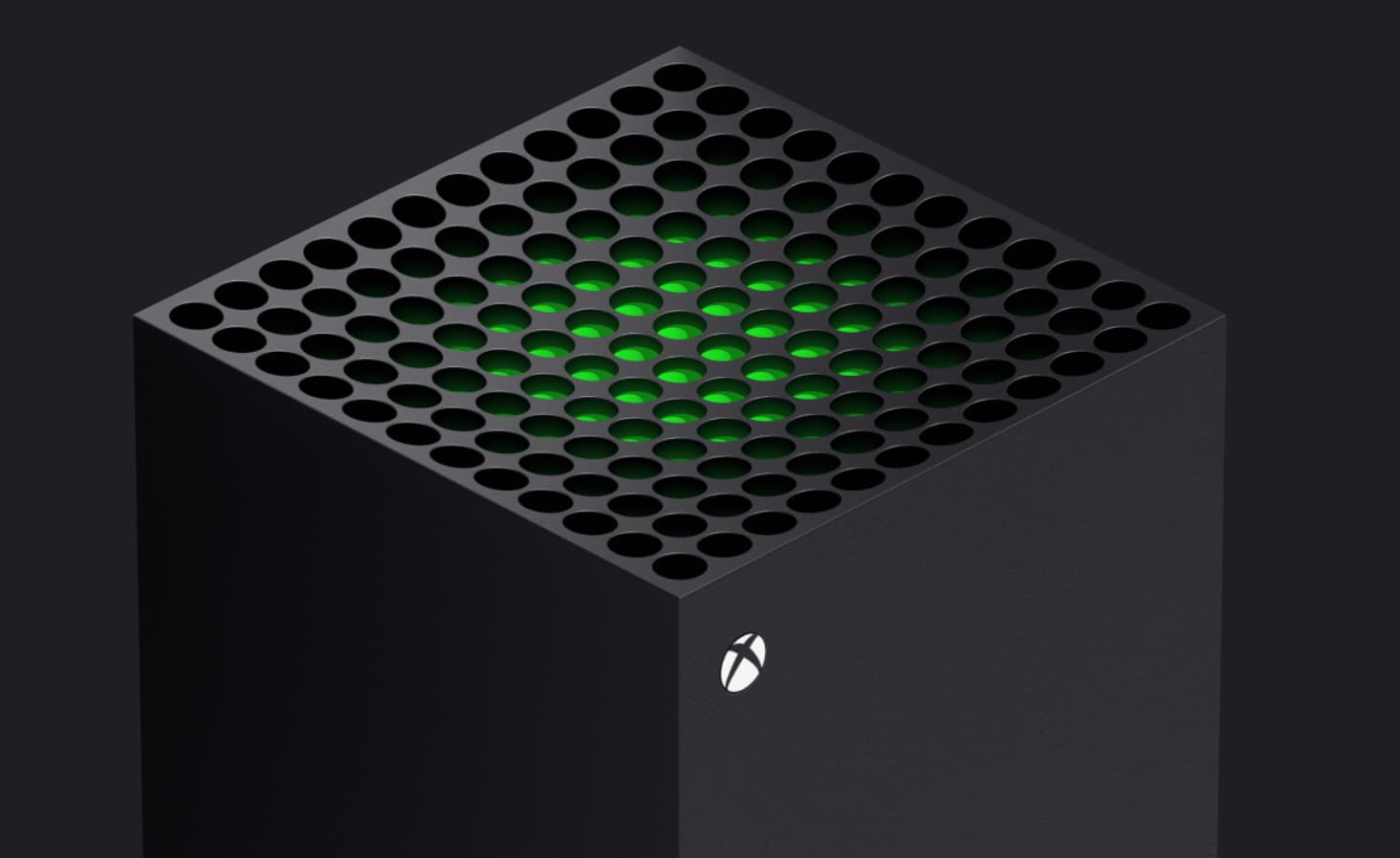
In this guide, I’ll walk you through exactly how to optimize Xbox Series X for low latency gaming, covering everything from display settings to network configurations.
These aren’t complicated fixes either—just simple adjustments that can transform your gameplay completely.
Understanding the Two Types of Lag
Before diving into solutions, let’s clear up what we’re actually dealing with.
Many players lump all lag together, but there are really two distinct problems that require different fixes.
Network latency only affects your online gaming. This is the delay between your console sending data to the game server and receiving a response.
It’s what causes rubber-banding, where your character teleports backward, or delayed hit registration, where your shots don’t count immediately.
Input lag, on the other hand, affects everything—online and offline. This is the delay between pressing a button and seeing the action happen on screen.
If you’re experiencing Xbox Series X lagging offline, input lag is your problem, not your internet.
Here’s a quick test: play an offline game or use the dashboard. If you notice a delay there, you’re dealing with input lag from your TV or console settings.
If the delay only happens during online matches, your network needs attention.
Crushing Input Lag: Display and Console Settings
1. Activate Game Mode on Your Television
This is honestly the biggest game-changer most players overlook.
Modern TVs apply all sorts of image processing—motion smoothing, noise reduction, upscaling, and all of it adds milliseconds of delay.
Game Mode bypasses these unnecessary processes.
Grab your TV remote, dive into the picture settings, and enable Game Mode. Some brands call it “Gaming” or “PC Mode.”
The difference is immediately noticeable. We’re talking about reducing controller input lag Xbox Series X from potentially 100ms down to 20-30ms.
2. Enable Auto Low Latency Mode (ALLM)
If you’ve got a newer TV, your Xbox can automatically switch it to Game Mode when you launch a game. Pretty convenient, right?
Navigate to Settings > General > TV & Display Options and toggle on “Auto Low Latency Mode.” Now your TV automatically optimizes whenever you’re gaming.
If you notice the Xbox Series X allows Auto low latency mode greyed out, your TV likely doesn’t support ALLM. No worries—just keep Game Mode manually enabled.
3. Bump Up to 120Hz Refresh Rate
If your display supports it, switch to 120Hz. This cuts the time between frames in half compared to 60Hz, making movement smoother and reactions faster.
Head to Settings > General > TV & Display Options > Refresh Rate and select 120Hz.
Even if a game doesn’t run at 120fps, many titles benefit from the reduced display latency. The improvement in responsiveness is real, especially in competitive shooters.
4. Kill Motion Smoothing Features
Some TVs sneak motion smoothing features into Game Mode under names like “Motion Plus” or “TruMotion.”
These create artificial frames to make movies look smoother, but they absolutely wreck gaming responsiveness.
Check your TV’s advanced picture settings and disable any motion enhancement features. Your games might look slightly less “cinematic,” but your reactions will be lightning fast.
5. Choose Performance Mode in Games
Many Xbox Series X titles offer a choice between Quality Mode (better graphics) and Performance Mode (higher frame rate). For competitive gaming, Performance Mode wins every time.
Higher frame rates mean fresher visual information reaching your eyes, which translates to better reaction times.
The graphics trade-off is honestly minimal on modern games, and the responsiveness boost is worth it.
Fixing Network Lag: Connection Optimization
1. Ditch Wi-Fi for Ethernet
I know, running a cable isn’t as clean as wireless. But if you’re serious about how to optimize Xbox Series X for low latency gaming, Ethernet is non-negotiable for competitive play.
Wi-Fi signals bounce off walls, get interference from other devices, and can experience packet loss during crucial moments.
A direct Ethernet connection to your router provides stable, consistent performance with lower ping. You’ll typically see a 20-40ms improvement, which is massive in fast-paced games.
2. Run a Network Diagnostic
You need to know what you’re working with. Head to Settings > Network > Network Settings > Test Network Speed & Statistics.
Your ping should ideally be under 50ms for competitive gaming, though under 80ms is acceptable.
Packet loss should be 0%. If you’re seeing packet loss or high ping despite good internet speeds, your connection has issues that need addressing.
This often explains why players experience Xbox Series X lagging, but the internet is fine—the speed is there, but the connection quality isn’t.
3. Fix Your NAT Type
A strict NAT type causes matchmaking problems and can increase latency. You want it set to “Open” for best results.
Log into your router settings (usually by typing 192.168.1.1 into a browser) and enable UPnP (Universal Plug and Play).
Alternatively, you can manually forward Xbox Live ports.
After making changes, restart both your router and Xbox.
Many discussions on the Xbox Series X controller input lag on Reddit mention NAT issues as a hidden culprit.
4. Switch to Faster DNS Servers
Your default ISP DNS servers might be slowing down your connection. Switching to faster public DNS can reduce lookup times and slightly improve overall responsiveness.
Go to Settings > Network > Advanced Settings > DNS Settings and select Manual. Try Cloudflare’s 1.1.1.1 or Google’s 8.8.8.8 as your primary DNS. It’s a small tweak, but every millisecond counts.
5. Minimize Network Congestion
If someone’s streaming 4K video or downloading files while you’re gaming, your connection suffers. Most modern routers support Quality of Service (QoS) settings that prioritize gaming traffic.
Log in to your router and enable QoS, setting your Xbox’s IP address as high priority. This ensures your gaming packets get through first, even when the network is busy.
Controller-Specific Considerations
If you’re using your Xbox Series X controller on PC, you might encounter Xbox Series X controller input lag PC issues.
Always use the Xbox Wireless Adapter for Windows rather than generic Bluetooth—it has lower latency and better stability.
Some players report Xbox controller is causing lag on PC when multiple wireless devices are active.
Try reducing wireless interference by moving other Bluetooth devices away from your setup.
Curious about your actual numbers? While there’s no official Xbox Series X controller latency test built into the console, third-party tools and high-speed camera tests show the Xbox Wireless Controller typically achieves 8-12ms of input lag when connected properly—among the lowest in the industry.
Bringing It All Together
Look, achieving how to optimize Xbox Series X for low-latency gaming isn’t about expensive equipment or technical wizardry.
It’s about understanding what causes delay and methodically eliminating those bottlenecks.
Start with the easy wins: enable Game Mode on your TV, switch to Ethernet, and select Performance Mode in your games.
These three changes alone can cut your total latency by 50ms or more—the difference between victory and defeat in competitive matches.
The Xbox Series X is genuinely one of the most responsive gaming systems ever made.
The hardware is there, ready to deliver instantaneous reactions.
By following this guide on how to optimize Xbox Series X for low latency gaming, you’re simply removing the obstacles that stand between your reflexes and on-screen action.
Your opponents won’t know what hit them.